-->

Thursday, 20 August 2015

Display the Calendar Using Jquery Full Calendar and SharePoint Rest API


In this post I will show you how to create your own Jquery Calendar view using the simple Jquery and SharePoint Rest API. I have used the Jquery full calendar plugin as it is very easy to use. It is highly customizable and very light weight.

I have created a Calendar list in my site and named it as ‘UpcomingEvents’. We will use this list to store our events or meetings.

You will required to add the reference to the following files from FullCalendar.io 


 <link href="../SiteAssets/css/fullcalendar.css" rel="stylesheet"/>  
 <link href="../SiteAssets/css/fullcalendar.print.css" rel="stylesheet" media='print' />  
 <script type="text/javascript" src="../SiteAssets/js/jquery-1.11.0.min.js" ></script>  
 <script type="text/javascript" src="../SiteAssets/js/fullcalendar.min.js" ></script>  
 <script type="text/javascript" src="../SiteAssets/JqueryFullCalendar.js" ></script>  

Create JqueryFullCalendar.txt and add the above mentioned references in the file,

JqueryFullCalendar.txt


 <link href="../SiteAssets/css/fullcalendar.css" rel="stylesheet"/>  
 <link href="../SiteAssets/css/fullcalendar.print.css" rel="stylesheet" media='print' />  
 <script type="text/javascript" src="../SiteAssets/js/jquery-1.11.0.min.js" ></script>  
 <script type="text/javascript" src="../SiteAssets/js/moment.min.js" ></script>  
 <script type="text/javascript" src="../SiteAssets/js/fullcalendar.min.js" ></script>  
 <script type="text/javascript" src="../SiteAssets/JqueryFullCalendar.js" ></script>  
           <div id='calendar' class="float:left search-results"></div>  

Thursday, 13 August 2015

Issues of Console.Log with Internet Explorer


Recently, I ran into an issue with one of my client where my particular callback function of ajax call was not called at all. It worked absolutely fine with google chrome and it was only issue with the Internet Explorer.

I did lot of digging around the ajax calls using fiddler to see if there is problem in the ajax call or whether some JavaScript file is not loaded correctly but could not find it much on that front.

I could track the issue when we open the IE development toolbar and it used to work absolutely fine. Initially I could not produce it  on my machine as I frequently use the IE toolbar. After troubleshooting a bit i found out that console object is exposed only when the developer tools are opened for a particular tab. If I do not open the developer tools window for that tab, the console object remains exposed for each page you navigate to. If I open a new tab, I must also open the developer tools for that tab in order for the console object to be exposed.

This was some petty issue which took lot of time to identify for me. So for workaround on this I  developed a small utility file for logging into console which will work across all the browsers.
This utility will log console messages only when console object is active else it will skip logging.

 /*
 FileName  :  DPSUTILS.js
 Author   :  Dhaval Shah
 Description :  This Javascript library contains common methods to do the read/Write operation across  
         different data sources e.g. UserProfile, Managed Metadata Service and Search Service
 */
 (function() {
   if (!window["DPS"]) {
     window["DPS"] = {};
   }
   DPS.Namespace = {
     Register: function(namespace) {
       var parts,
         context,
         nsPath,
         partsLength;
       parts = namespace.split(".");
       partsLength = parts.length;
       context = window;
       nsPath = "";
       for (var i = 0, l = partsLength; i < l; ++i) {
         var name = parts[i];
         if (!context[name]) {
           context[name] = {};
           context[name].__namespace = name;
         }
         nsPath += name + ".";
         context = context[name];
         if (!context.__namespace) {
           context.__namespace = nsPath.substring(0, nsPath.length - 1);
         }
       }
       return context;
     }
   };
 })();
 /**
  * This namespace contains utility functions used across application.
  */
 (function() {
   DPS.Namespace.Register("DPS");
   DPS.Namespace.Register("DPS.UTILS");
      DPS.UTILS = {    
     /*
      * Logs the exception message in browser console
      * @param {string} message - Exception Message
      */
     logAjaxErrorMessage: function(xhr, status, error) {
         if (xhr.responseText != "") {
           var message = xhr.responseText;
           if (typeof console === "undefined") {
             return;
           }
           console.error(message);
         }
       },
       logMessage: function(message) {                
           if (typeof console === "undefined") {
             return;
           }
           console.log(message);        
       }
   };
 })();

Save this file as DPSUTILS.js and reference it in your code.

In order to log message you can directly use

DPS.UTILS.logMessage("My Log Message . . .");


I hope this was helpful..

Happy Coding !

Wednesday, 4 December 2013

SharePoint Multi-Language Variation Site


We will use the SharePoint Online variations feature to create multi-language site.
There will be a source site (most probably in English) where most of the authoring and creation of content will take place and there will be another target site (in your native language) which will be created with the help of 'Machine Translation Service'.
In the above figure it can be seen that we will first create a variation site in English and there will be target site in Hindi which will be auto generated from English.
First to begin please make sure we have following things in place,
  • Activate SharePoint Server Publishing Infrastructure feature on the ‘Root Site’ collection
  • ‘Root site’ is of type ‘Publishing Site’(in my case, http://sp2013labapp01/sites/demo )
  • Language Pack Hindi should be installed on all the Servers in SharePoint Farm

At the end of this article we will have 2 links,
  • Source Site in English: http://sp2013labapp01/sites/demo/en-us
  • Target Site In Hindi : http://sp2013labapp01/sites/demo/hi-in


Configure Variation Settings for your ‘Root Site’

In this step we will configure which and what things to create variation for.
  1. Go to Site Settings of your ‘Root Site’
  2. Click on ‘Variation Settings’
  3. Make sure the variation settings are as shown in the screenshot below
  4. These are the default settings and easy to go for this tutorial. Click on ‘OK’

Creating and Configuring Machine Translation Service in SharePoint 2013


To Use the Machine Translation service to create the multi-language feature of SharePoint 2013 we need to first make the ‘Machine Translation Service’ up and running in your farm.

So this article will outline on creating and configuring the machine translation service for SharePoint and in the next article I will outline the steps to create a multi-language site.

Creating Machine Translation Service

Open Central Administration, go to Application Management section, and choose Manage service applications.

On the ribbon, choose New, and then choose Machine Translation Service.


On the next page type a name for the service application and fill in the details as shown in the screens below


Thursday, 28 November 2013

Query Rules in SharePoint 2013


With the help of Query Rules in Sharepoint 2013 without any custom code we can promote a specific result or even change the ranked result by changing the query. Search Expert or the Search Manager of the organization has the freedom and power to change the search experience and adapt it to the organization needs. Defining the right keywords to be matched on the user queries and mapping the conditions with the relevant actions is easy but the process must undoubtedly be well managed. The management of the query rules should definitely be part of your SharePoint 2013 search governance strategy.

A query rule can specify the following three types of actions:
  • Add Promoted Results
  • Add one or more groups of results, called result blocks.
  • Change the ranking of results.

How to Add Query Rule:
Let’s take a scenario where organization is maintaining the list of glossary terms managed in the organization. When we search in google “meaning of activity”, it automatically recognizes that user wants to know the meaning of the word ‘activity’ and it highlights its meaning at top and displays the rest of the results in bottom.


SharePoint also provides this feature using ‘Query Rule’ feature.

SharePoint Crawls - Full, Incremental, Continuous


Full Crawl

Full Crawl of Content source will re index all the content from beginning

Important Points to Consider:
  • If new managed property has been introduced, we need to run Full Crawl of content source     
  • If new crawl rules are created/updated/deleted, Full crawl of content source is required
  • If incremental crawl has been failed
  • If software update or service pack has been installed on the servers
  • Expensive in terms of performance issues


Incremental Crawl

Incremental Crawl of Content source will only process those items which are changed since the last crawl happened.

Important Points to Consider:
  • Most preferred after the full crawl has been done.
  • Does not hamper the performance as it will crawl only modified documents not the entire content source.
  • The incremental crawl will retry items and postpone crawling the item if the error persists.


A limitation with the Full Crawl and Incremental Crawl is we cannot schedule both to execute parallel. For example if the Full Crawl is already running then the Incremental Crawl cannot be triggered until the Full Crawl completes, if you try to Stop Full Crawl then also it is mandatory to finish at least once successful Full crawl before triggering any Incremental Crawls.

So Microsoft has come up with the concept of Continuous Crawl

Continuous Crawl

With Continuous Crawl you can maintain the content index as fresh as possible.               
    More than one continuous crawl can run in parallel
    one deep change will not result in degraded freshness on all following changes

The impact of a "Continuous Crawl" is the same as an incremental crawl.

At the parallel execution of crawls, the "Continuous Crawl" within the parameters defined in the "Crawler Impact Rule" which controls the maximum number of requests that can be executed by the server (default 8).

The Subscription Settings service and corresponding application and proxy needs to be running in order to make changes to these settings

I see the following error when I tried to configure my App Url


Execute the following commands


Get-SPManagedAccount contoso\sp_services
$appPool = New-SPServiceApplicationPool -Name SubscriptionServiceAppPool -Account $account
$serviceApp = New-SPSubscriptionSettingsServiceApplication -ApplicationPool $appPool -name "Subscription Settings Service Application" -DatabaseName "SP2013AppSubscriptionSettingsDB"
$serviceAppProxy = New-SPSubscriptionSettingsServiceApplicationProxy -ServiceApplication $serviceApp


Make sure the below services are started


Perform an iisreset

Configure DNS

Create a forward lookup zone for the app domain name

1.       Verify that the user account that performs this procedure is a local administrator on the domain controller.
2.       Click Start, point to Administrative Tools, and then click DNS.
3.       In DNS Manager, right-click Forward Lookup Zones, and then click New Zone….
4.       In the New Zone Wizard, click Next.
5.       In the Zone Type page, accept the default of Primary zone, and then click Next.
6.       In the Active Directory Zone Replication Scope page, select the appropriate replication method for your environment (the default is To all DNS servers in this domain), and then click Next.
7.       In the Zone Name page, in the Zone name box type the name for your new app domain name (for example, ContosoApps.com), and then click Next.
The New Zone Wizard shows the new domain name for apps.

1.       On the Dynamic Update page, select the appropriate type of dynamic updates for your environment (the default is Do not allow dynamic updates), and then clickNext.
2.       On the Completing the New Zone Wizard page, review the settings, and then click Finish.

'Install app for SharePoint': Failed to install app for SharePoint

Now after enabling the “Developer Site” feature on my site collection, I go ahead and deploy the same App but now this time I get this error


Now this error comes up because I have not configured app catalog or app catalog url

So I need to create a catalog app catalog site first

  1. Go to Central Administration ->Apps
  2. Go to “App Management” -> Manage App Catalog
  3. Select any appropriate web application where you want to create app catalog site and give it a name
  4. Click ok.


But when I click the “Configure App URL” I get the below error.


The Subscription Settings service and corresponding application and proxy needs to be running in order to make changes to these settings

More about this error in my next post over here !

Sideloading of apps is not enabled on this site

I created my first SharePoint 2013 App and tried to deploy it in my SharePoint Farm and it shoot me the below error right into visual studio.


This Error comes up when you try to deploy app to site which is not a developer site. If you create a developer site and deploy the same app, it will work just fine.

But you can just go ahead using the same site by enabling the “Developer Site” feature on your current site collection

Execute the following PowerShell command on SharePoint PowerShell


Enable-SPFeature -Identity e374875e-06b6-11e0-b0fa-57f5dfd72085 -url <siteurl>


Happy SharePointing !

The SharePoint Server Publishing Infrastructure feature must be activated at the site collection level before the Publishing feature can be activated.

While creating a new search site in my site collection I got this error!


You might get this error while creating Business Intelligence Center site

Resolution:

Activate publishing at the site collection level


1.       From the root of your site collection, click Settings Small Settings gear that took the place of Site Settings. > Site settings.
2.       On the Site Settings page under Site Collection Administration, click Site collection features.
3.       On the Site Features page, scroll down to SharePoint Server Publishing Infrastructure and click Activate.

Once publishing features are activated, sub sites inherit them automatically. But, if you built a site before activating the publishing infrastructure, you’ll have to manually activate it for each site.


Activate publishing at the site level


1.       From any page within the site, click (gear icon) Settings Small Settings gear that took the place of Site Settings. > Site settings.
2.       On the Site Settings page, in the Site Actions section, click Manage site features.
3.       On the Site Features page, next to SharePoint Server Publishing, click Activate.


Using Powershell


Execute the below command in SharePoint Management Shell

Enable-SPFeature -Identity PublishingSite -Url http://sp2013labapp01/

Enable-SPFeature -Identity PublishingWeb -URL http://sp2013labapp01/


Happy Sharepointing !

SharePoint 2013 Apps - Troubleshooting Common Errors


Error occurred in deployment step 'Install app for SharePoint': The System Account cannot perform this action


I was trying to deploy the App with the system account I used to configure/setup my SharePoint 2013.

In SharePoint 2013, System Account cannot deploy any app into the SharePoint because of security reasons.

Workaround:
  1. Create/User another account to open the visual studio and try deploy the App
  2. However, Newly created account should have following permissions
    • Add the new account to FARM administrator’s group in Central Administration
    • Created account should be part of local server admin group
 

Happy SharePointing !!


Target Audiences in SharePoint


Audiences are created as part of the User Profiles service in SharePoint, and a user’s inclusion in an audience is defined by a set of rules that can combine membership in groups or user profile property comparisons.
Audience targeting is use to personalize content display including list or library items, navigation links, or Web Parts. Audience targeting is commonly used to filter news items on Portals. As an example, the Content By Query Web Part (CQWP) supports audience targeting when doing content aggregation.

***Since the Target Audiences field is not defined as a Site Column, the column cannot be added to a Content Type through the SharePoint User Interface

It allows your page to configure itself depending on who is viewing it. For instance you could use Target Audiences to:
§  Show an English language test to one set of people and a Spanish language one to another
§  Show an assessment only to approved people
§  Show a different survey to people depending on their context
§  Show an observational assessment only to instructors or monitors, and not show it to ordinary participants
§  Give different assessments to people in different departments

What to choose for Target Audience?


It’s easiest to choose audiences as SharePoint groups, distribution lists or security groups used in authentication

You can also define rules-based groups of people called global audiences, which gives potential of more sophisticated filtering. 


Tuesday, 24 September 2013

Site Definition Versus Site Templates


Site Definition:

Site definitions consist primarily of multiple XML and ASPX files stored on a front-end web server in folders under the %ProgramFiles%\Common Files\Microsoft Shared\web server extensions\14\TEMPLATE\SiteTemplates directory.
-          Old & Out of Date
-          Involves managing of lot of tedious onet.xml and schema.xml files.
-          A site definition is installed on file system of web front ends
-          A site definition Page and List definition are cached at IIS process startup
 

Custom Site Templates:

 Custom web templates are stored in the database—specifically, the sandbox solutions gallery—and are created by using an existing site, with or without its specific content, as a model. This provides a means for reusing sites that you have customized.

 ***The first option for getting the SharePoint Designer changes beyond the current site is to take the site you have modified with SharePoint designer and save it as a template. You can download the template and upload this to another site collection and can create a site based on this template. Whenever you need a new site you can create it from the site template you have created. This is a good approach if the design is finalized and you want to reuse the same template in different site collections. But keep in mind you can't go back and apply the changes after the site is created. If you make any changes to the work that you did on the original site then those changes won't be reflected across the other SharePoint sites that were created from the same template. This is because each page exists separately in the SharePoint database.
 

 Major differences:

  • To create or use a site definition you need server admin access, but site template can install from web UI by site owners.
  • Site definition supports feature stapling, but for site template additional features must be activated in gallery.
  • Site definitions are stored on hard disk, but site templates are stored in content DB.
  • Site definition can provision multiple webs, but site templates are for single web only.
  • Creating site definition is relatively more complex than site template creation.
  • Performance wise Site definitions are better than site templates as files are stored on harddisk

Happy Sharepointing !

Please do Share/Like/Comment if this article was helpful.

Saturday, 7 September 2013

List Columns vs Site Columns vs Content Type


List & Library Columns

Most Popular and Easy way to create columns. It’s accessible directly from the ribbon and is available on all lists and libraries.
Advantage: Well, it’s easy to create. Within seconds
Disadvantages: It’s easy to create. Yes, The option is right there in front of you in the ribbon and will satisfy the immediate need for a column. However, it doesn’t promote reusability or help leverage what already exist in a parent site. It exists in that list or library once it’s created and that’s it.
A customer once had close to a 100 document libraries in a site. They all had one column that was exactly the same. Now to update they have to update the column in all the document libraries

Site Column

They are columns that we create in a SharePoint site to be available to its’ sub sites.
Advantages: It can be reused by multiple lists and libraries within and a site and its’ sub sites. It also helps by centralizing the configuration of the column in one place which makes it easier to update choices in a choice column for example that are used by multiple lists and libraries.
It allows all sites from a Site Collection to lookup information in a single list like a customers or manufacturers list for example.
Disadvantages: It is not so intuitive to create as the list/library column and you need administrative rights to create it. If overused, it can create a chaos amongst available sub sites. It also requires the administrator to think about his columns and architecture every time he creates one.


Content Type

A Content Type is a reusable, shareable metadata. The base type of a content type could be an existing content type like Item, Document, Folder, Event, Task, Message, Comment, Post.
Content Types are basically a way of grouping Site Columns together into a reusable group that represents some kind of content to us. For example I could group the Site Columns Invoice #, Customer and Related Product together into an “Invoice Content Type”
Example : Announcement List or Task List are basic content type provided by microsoft.
- Content Type, just like Site Columns, it is pushed to all sub sites of the designated site where it was created.
- A Content Type can only exist within a Site Collection, if you want to reuse it in another you will have to recreate it or you can use content type hub.
-  You can attach a workflow to your content type

Advantages : Content Types are necessary to organize reusable content and configurations within SharePoint. Making sure all Invoices have the same metadata and document templates for example. It can inherit from the other content types
Disadvantages : Little bit complex

Example : Suppose i have a document library for each client. one doc library for georgia pacific, one doc lib for infosys and one doc library for Cisco
Now each doc library will contain specific documents like invoice, contract agreement, sales document, etc
Here i can use site columns and it would work for me but the columns wont be tightly integrated or grouped with each document.
So its better if we create a content type for invoice doc, sales doc or contract agreement.


Content Type Hub 

Now as I mentioned earlier content type are available to only with the sites and it's subsites. Now to overcome this we have content type hub.
Content Type Hub is a central location where you can manage and publish your content types – so now web applications can subscribe to this hub and pull down the published content types from the hub

Happy Sharepointing !

Please do Share/Like/Comment if this article was helpful.

Thursday, 5 September 2013

Sharepoint Branding And Customizations - Part 3

Al right as I mentioned in my first article of this series, let's see how we can embed you tube video to your SharePoint site.

Embed YouTube Video

As difficult it sounds, its actually very easy with the content editor web-part of the SharePoint. 

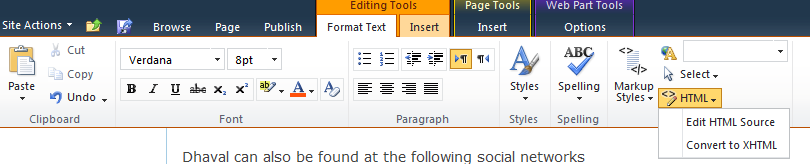
First of all add a content editor web-part to your SharePoint page. While editing the web-part, go to the Format Text option under the Editing Tools option in Robbon. Select 'Edit HTML Source' as shown below.

It will open a Dialog box to enter your HTML code.
Now go to youtube and select any video of your choice. Mine is "When you nothing say at all". Right Click on your video and select 'Copy Embed Code' as shown below


It will copy this into your clipboard

<object style="height: 390px; width: 640px"><param name="movie" value="http://www.youtube.com/v/AuJrEBtmM1Q?version=3&feature=player_detailpage"><param name="allowFullScreen" value="true"><param name="allowScriptAccess" value="always"><embed src="http://www.youtube.com/v/AuJrEBtmM1Q?version=3&feature=player_detailpage" type="application/x-shockwave-flash" allowfullscreen="true" allowScriptAccess="always" width="640" height="360"></object>

Paste the above code in the dialog box and Click ok. Save the page and you are ready to go ! 


Happy Sharepointing !


Please do Share/Like/Comment if this article was helpful.

Sharepoint 2013 - Working with Thesaurus And Synonyms

I wanted that my search center should return the results with the synonyms for the particular search keyword. I tried to do it the way we do in Sharepoint 2010.
Locate the thesaurus file from %ProgramFiles%\Microsoft Office Servers\14.0\Data\Office Server\Applications\GUID-query-0\Config, where GUID is the GUID of the new Search service application. Something like mentioned here.

It was pretty good where we had two functionalities "Replacement Sets" & "Expansion Sets", But for Sharepoint 2013 these they have eliminated it.

Below are the steps to do that in Sharepoint 2013
 1. Create a thesaurus file
 2. Install the Thesaurus file
 3. Check the results

 1. Create a thesaurus file
 Create a .csv file with the columns Key, Synonym and Language.
Key - Term (single or multiple words) that you want to trigger a synonym for when the term occurs in a query
Synonym - Synonym (single or multiple words) that you want to add to the query if the term specified in the Key column occurs in a quer
Language(Optional) - Abbreviation for the language for which the synonym should apply

This is how my thesaurus.csv file will look.


 2. Install the thesaurus File
 This can be done using powershell

$searchApp = Get-SPEnterpriseSearchServiceApplication
Import-SPEnterpriseSearchThesaurus -SearchApplication $searchApp -Filename <Path>

<Path> specifies the full UNC path of the .csv file (the thesaurus) to be imported.

3. Check The Results
As you can see in the figure, whenever i want to search for "Internet Explorer" it should return the results with "IE" or "IE5" or "IE6" or "IE7"


One more thing to note over here is, if i search for "IE" or "IE5" or "IE6" or "IE7" it will return only that particular results.


Key Points:
  1. I find the new approach in SharePoint 2013 a bit cumbersome, only good thing about it was power shell support and it does not require restart of Search service
  2. It does not have Replacement Set option, so we cannot replace the keyword search with our option. For example, I cannot replace the search with "NT5" keyword search with the "Windows 2000" and "W2K". Which was possible with SharePoint 2010
  3. It is not as extensible as expansion set. Here only one to one mapping is possible. For example, i had to write 4 entries to include the search for IE5,IE6,IE7 and IE when user searches for "Internet Explorer"
Happy Sharepointing !

Please do Share/Like/Comment if this article was helpful.